Upload court documents to Clio, straight from the portal
Stop the download-upload dance. Upload filings from PACER, CM/ECF, and state court portals directly to your Clio matters with a single right-click.

- ✓Google Chrome on desktop — Windows, macOS, or Linux
- ✓An active Clio Manage account you can sign into
- ✓The Send to Case extension installed and connected to Clio
- ✓Access to the court portal — PACER, CM/ECF, Tyler Odyssey, or your state system — where the filings live
Court filings into the matter, in under four minutes
What Clio does on its own, the download-and-upload route, naming and filing, PACER, discovery productions and ZIP files from evidence portals. The video's description on YouTube lists the chapters and links the Clio help articles behind each step.
Finding the document in a court portal
Court portals differ, but the path to the actual file is almost always the same four moves.
Open the case, not just the search result
Search by case number or party name, then open the docket or register of actions. The search results page lists cases; the document links live one level deeper, on the case record.
Click through to the filing itself
On the docket, the downloadable document is usually the entry number, a document title, or a small PDF icon — not the case-summary page. Open the entry to reach the actual PDF.
Stay logged in
Most portals serve documents only to a signed-in account, and some restrict filings to counsel of record. Send to Case uses your existing browser session, so log in as you normally would first.
On federal PACER, use the free look
The Notice of Electronic Filing (NEF) email gives counsel of record a one-time free look at a filing in their own case. Open the document from the NEF and save it then, before PACER's per-page charges apply on later views. More on PACER & CM/ECF.
Sealed or restricted filings that won't download in the portal can't be uploaded either — a tool can only send a file you can already open.
The Clio-only route, step by step
Once the file is on your computer, this is how to get it into the matter with Clio's own tools.
Check what Clio does itself
Clio File, available in some states, puts the court-stamped copy in the matter automatically. Clio Docket, part of Clio Work, searches federal and state dockets and can attach a docket to a matter, so new activity shows on the matter's dashboard.
Upload to the matter
In the matter's Documents subtab, click New, then Upload files, or drag the file onto the documents table. Before you upload, you can set the date you received it, change the name, and pick a document category, such as Orders or Motions.
Name it like the docket
A common convention, not a Clio rule: docket entry number, the date with the year first, what it is, then its status, as in 0012 – 2026-09-30 – Order on Motion to Compel – FILED. To get the same folders in every matter, an administrator can put your folder structure in a matter template.
File productions as delivered
Give each production its own folder, keep the file names it came with (they often carry the Bates numbers), and put the cover letter beside it.
Unzip before you upload
Clio keeps a ZIP as one file and won't unzip it. Unzip it on your computer, then upload the folder (a folder uploaded through the web caps at 5 GB in total) or copy it into Clio Drive, which has no folder limit as long as each file is under 5 GB. A single file over 5 GB won't go in by any route.
The court document problem
Every litigation attorney knows this frustration.
You're in PACER downloading the latest filings. For each document, you have to:
Right-click the document link in PACER and select "Send to Clio":
Download an entire docket at once
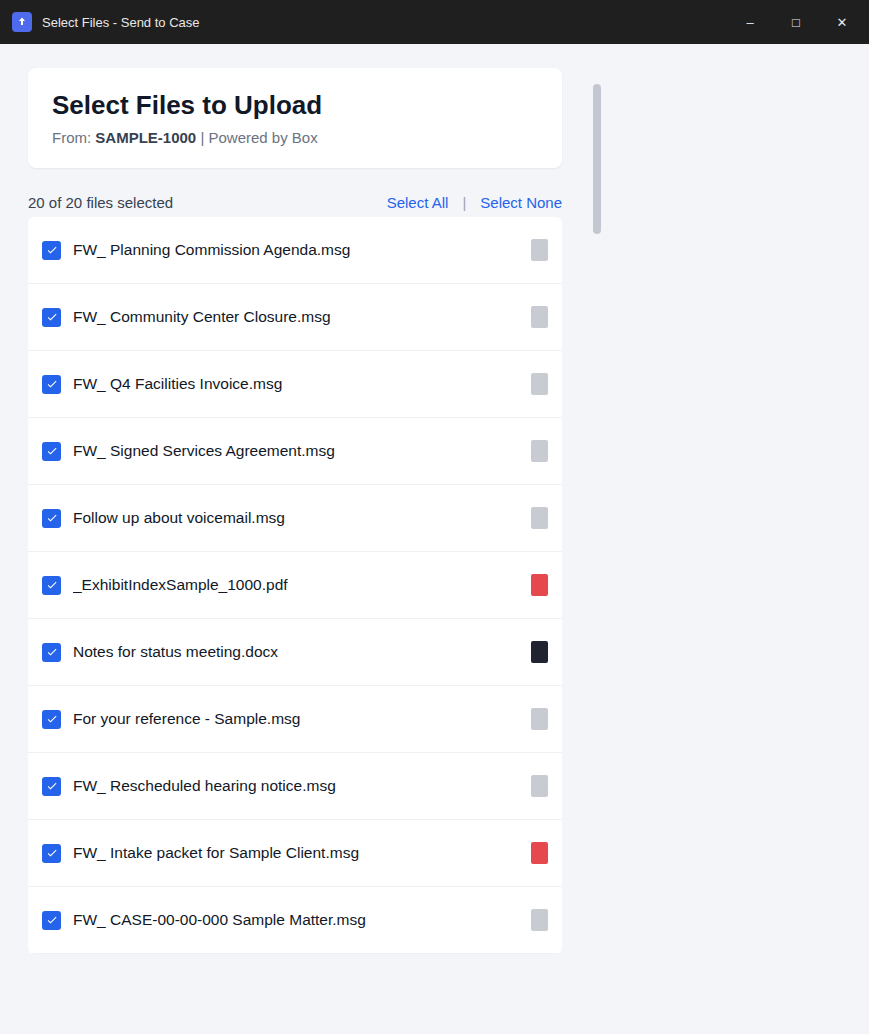
Need to save multiple filings from the same case? Use the batch scan feature to find all downloadable documents on the page and upload them to your matter in one action.
On PACER, each document the scan opens is a new view at PACER's normal per-page fees. For filings in your own case, save the free copy from the court's email notice first.
Court filings are only part of a criminal file — when the prosecution shares bodycam and dashcam discovery on expiring links, see the guide to getting Axon Evidence.com discovery into Clio. And where the stamped copy belongs once it's downloaded — filed versus served, docket-number-first naming, which branch of the matter it lands in — is the organizing half of the same job.
- ✓ Scans the page for all document links
- ✓ Select which documents to upload
- ✓ All files go to the same matter and folder
Batch upload in action
Perfect for every court filing
Whatever document type you're working with, Send to Case handles it.
Pleadings
Complaints, answers, motions, and briefs.
Court orders
Orders, judgments, and opinions.
Docket sheets
Full dockets and case summaries.
Exhibits
Attached exhibits and evidence.
How to upload court documents to Clio
Four simple steps to streamline your court document workflow.
Install extension
Add Send to Case to Chrome from the Web Store. Takes about 30 seconds.
Connect to Clio
Sign in with your Clio credentials. We use secure OAuth — we never see your password.
Right-click document
In PACER or any court portal, right-click the document link and select "Send to Clio".
Select matter
Search for your matter, pick a folder, and the document uploads directly to Clio.
Built for security-conscious firms
Your client data deserves protection. Here's how we keep it safe.
Direct upload
Files travel straight from your browser to Clio. They never touch our servers.
Official OAuth
We use Clio's official authentication. Your password is never visible to us.
Local storage
Your matter list stays in your browser. A few settings sync through your browser account, never to our servers.
Privacy first
File names are replaced with codes in error reports, and your files never reach us.
Works with virtually any court system
Federal, state, and local courts — if it has a download link, Send to Case can handle it.
Federal Courts (PACER & CM/ECF)
Upload filings directly from the federal court system. PACER (all 94 federal districts), CM/ECF (legacy & NextGen), bankruptcy courts, and appeals courts. See the PACER and CM/ECF guide.
State Courts
Works with state eFiling portals nationwide — New York (NYSCEF), California (Superior Court portals), Texas (eFileTexas), Florida (MyFLCourtAccess), and more. View all state portals.
Tyler Odyssey & File & Serve
Works with Odyssey-powered courts across 25+ states. Georgia (eFileGA), Texas, Indiana, Minnesota, File & Serve documents, and multi-jurisdiction workflow. See the Odyssey and File & Serve guide.
Common questions about uploading court documents to Clio
Got more? Email [email protected].
Which court systems does Send to Case work with?
+Send to Case works with any court system that has downloadable document links. This includes PACER and CM/ECF for federal courts, Tyler Odyssey and File & Serve, and most state court eFiling portals. If you can click a link to download a document, you can send it to Clio.
Can I upload multiple court documents at once?
+Yes, you can use the batch scan feature to find all downloadable documents on a page and upload them together. This is perfect for downloading entire dockets or multiple filings at once.
Does Clio have its own court e-filing?
+In some states, yes. Clio File is e-filing and e-service built into Clio Manage: once the court accepts and stamps a document, it lands in the matter's Documents subtab by itself. As of October 2026, Clio's help center lists California, Georgia (some counties), Texas, Illinois, Nevada and Virginia (some counties), so check it for your court. Elsewhere, e-filing integrations such as InfoTrack File & Serve are listed in the Clio App Directory. For documents you receive rather than file, such as the other side's filings, the court's orders, or productions from court and evidence portals, Send to Case sends the file straight from your browser to the matter. Confirm current availability in Clio's help center.
Do court documents go through your servers?
+No, documents upload directly from your browser to Clio's servers. We never see, store, or have access to your court documents or any file contents. Your data stays private.
What types of court documents can I upload?
+Any document type supported by Clio, including PDFs, pleadings, motions, court orders, docket sheets, exhibits, and more. Files up to 5GB are supported.
Keep going
PACER & CM/ECF to Clio
Send federal court filings, dockets, and exhibits from PACER or CM/ECF directly to Clio matters.
Read guide →Tyler Odyssey & File & Serve
Upload state-court filings from Tyler Technologies' Odyssey portal and File & Serve in over 25 states.
Read guide →State court documents to Clio
Upload notes for state-court eFiling portals across all 50 states — NYSCEF, eFileTexas, MyFLCourtAccess, and more.
Read guide →Stop wasting time on court document downloads
Join litigation attorneys who've streamlined their PACER-to-Clio workflow.
Free tier includes 10 uploads/month. See pricing